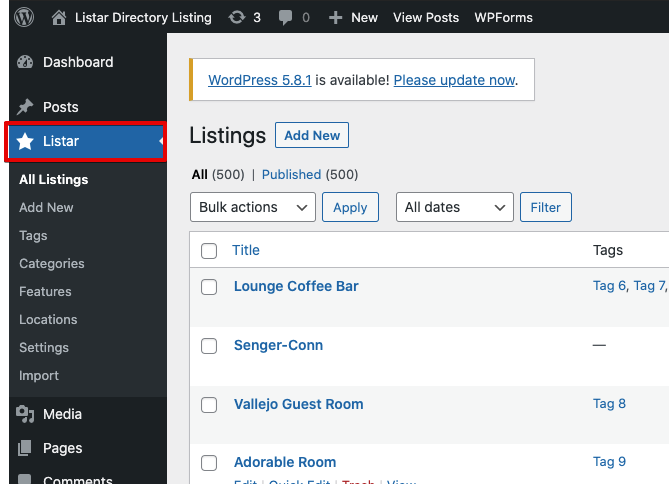
WordPress plugins are tools that you can add to your WordPress site to enhance its functionality. They help you add new features or improve existing ones. For example, you can use a plugin to manage your listing data or customize how your site works.
1. Listar – Directory Listing & Classifieds WordPress Plugin
Our WordPress plugin is a powerful tool designed to support directory listing management. It is required for organizing, updating, and maintaining your listing data directly from the WordPress backend.
The plugin also provides full REST API support, making it easy to integrate with mobile applications and sync data in real time.
Additionally, it works seamlessly with WordPress themes to render and display listing data correctly on your site—ensuring a smooth experience for both web and mobile users.
No extra setup or purchases are needed—just install and go.
Manual Installation
You can download Listar – Directory Listing & Classifieds WordPress Plugin directly from WordPress Plugin official page, then do the steps below
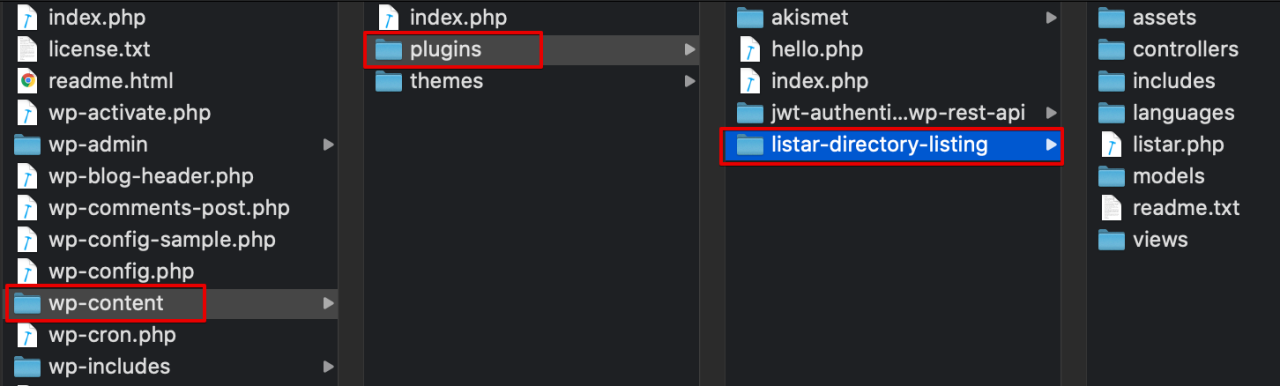
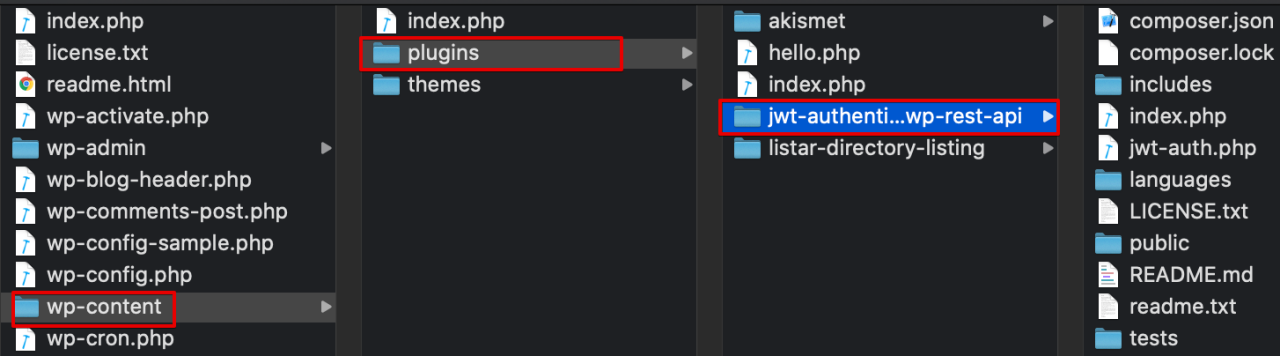
- Extract the zip file and drop the contents in the
wp-content/plugins/directory of your WordPress installation - Activate ‘Listar – Directory Listing & Classifieds WordPress Plugin’ through the ‘Plugins’ menu in WordPress.
Direct Download & Installation
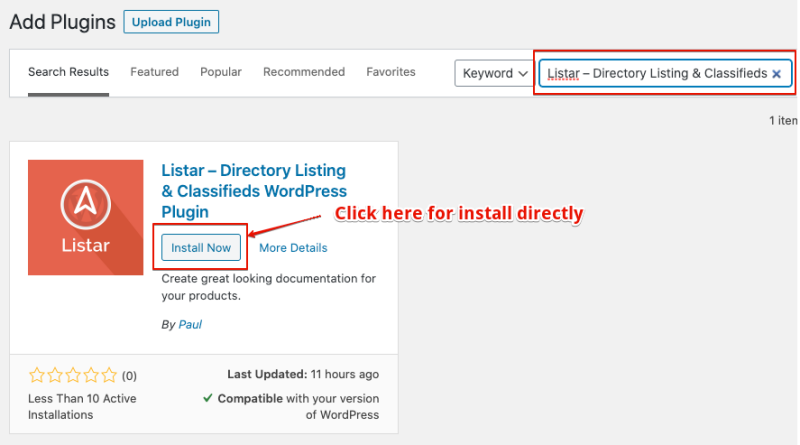
- Plugins → Add a New → Search for Listar – Directory Listing & Classifieds WordPress Plugin
- Click Install Now
Install Composer and Set Up Dependencies
Install Composer via the command
Open your terminal or command line, then go to your plugin’s directory:
cd ~/your-site/wp-content/plugins/listar-directory-listing
composer update
How to Install Composer
Composer is a tool used to manage PHP packages. Follow the steps below to install it on your system.
- Visit the Official Composer Website: https://getcomposer.org/download/
- Follow Installation Instructions for install your server
- Verify Installation:
composer --version
Install Composer manually
We included the vendor.zip file in the download package.
Please extract the vendor.zip to ~/your-site/wp-content/plugins/listar-directory-listing

Check Your Result
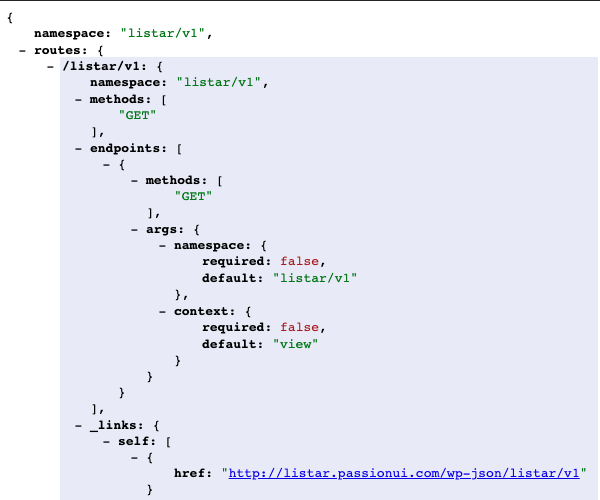
After you install Listar – Directory Listing & Classifieds WordPress Plugin, ensure it works fine. Please access the URL following the format {domain}/index.php/wp-json/listar/v1
Example: https://demo.listarapp.com/index.php/wp-json/listar/v1
If your result like the image below, it’s means you installed it successfully, and your mobile can work fine with REST APIs
2. JWT Authentication for WP-API
This plugin supports Authentication. You can download JWT Authentication for WP-API directly from WordPress Plugin’s official page, then do the steps below
Manual Installation
- Extract the zip file and drop the contents in the
wp-content/plugins/directory of your WordPress installation - Activate ‘JWT Authentication for WP-API’ through WordPress’s ‘Plugins’ menu.
Direct Download & Installation
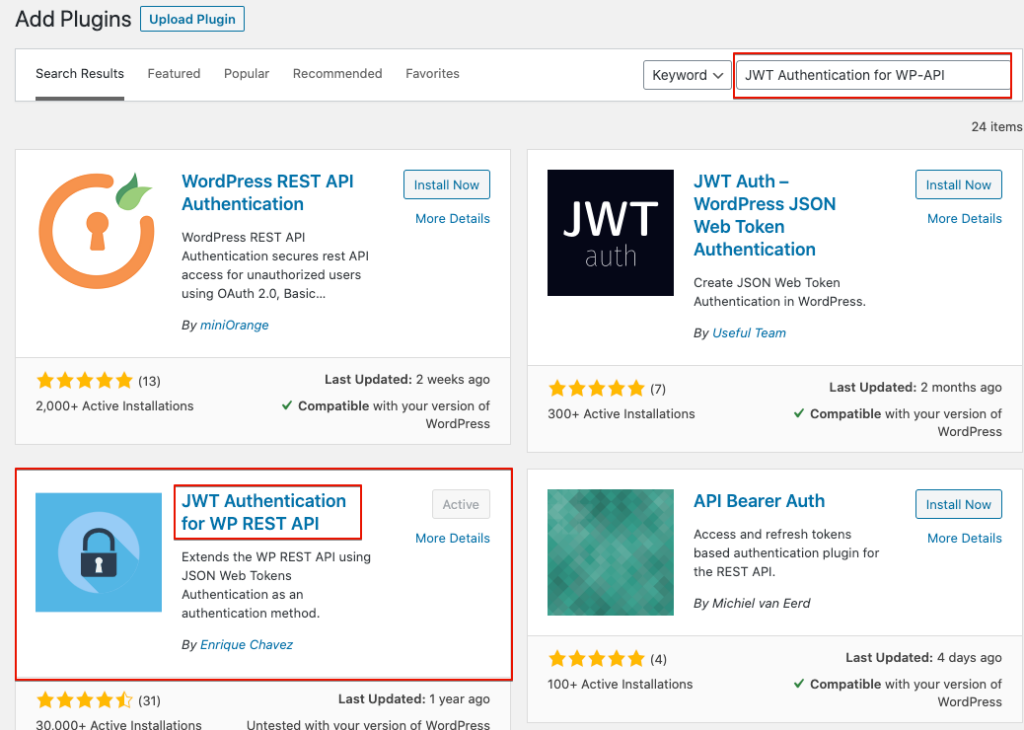
- Plugins → Add a New → Search for JWT Authentication for WP-API
- Click Install Now
Configure HTTP Authorization Header
Most servers have disabled the HTTP Authorization Header by default. To enable HTTP Authorization Header
You can find your .htaccess by directory {your-wordpress-source-code-path}/.htaccess, then edit your file .htaccess with the format below
RewriteEngine on
RewriteCond %{HTTP:Authorization} ^(.*)
RewriteRule ^(.*) - [E=HTTP_AUTHORIZATION:%1]
To enable this option, you’ll need to edit your .htaccess file by adding the following
SetEnvIf Authorization "(.*)" HTTP_AUTHORIZATION=$1
After you modify your .htaccess
<IfModule mod_rewrite.c>
RewriteEngine On
RewriteBase /
RewriteRule ^index\.php$ - [L]
RewriteCond %{REQUEST_FILENAME} !-f
RewriteCond %{REQUEST_FILENAME} !-d
RewriteCond %{HTTP:Authorization} ^(.*)
RewriteRule ^(.*) - [E=HTTP_AUTHORIZATION:%1]
RewriteRule . /index.php [L]
</IfModule>
SetEnvIf Authorization "(.*)" HTTP_AUTHORIZATION=$1
Configure WordPress wp-config.php
The JWT needs a secret key to sign the token, this secret key must be unique and never revealed.
To add the secret key edit your wp-config.php file and add a new constant called JWT_AUTH_SECRET_KEY
define('JWT_AUTH_SECRET_KEY', 'you-secret-key');
Check Your Result
After you have installed JWT Authentication for WP-API plugin for make sure it’s working fine. Please use your web browser to access the URL following the format {domain}/index.php/wp-json
Example: https://demo.listarapp.com/index.php/wp-json
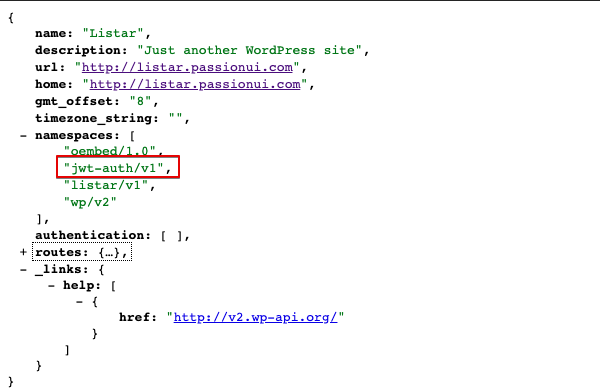
If your result like the image below, it’s means you installed it successfully and your mobile can work fine with REST APIs